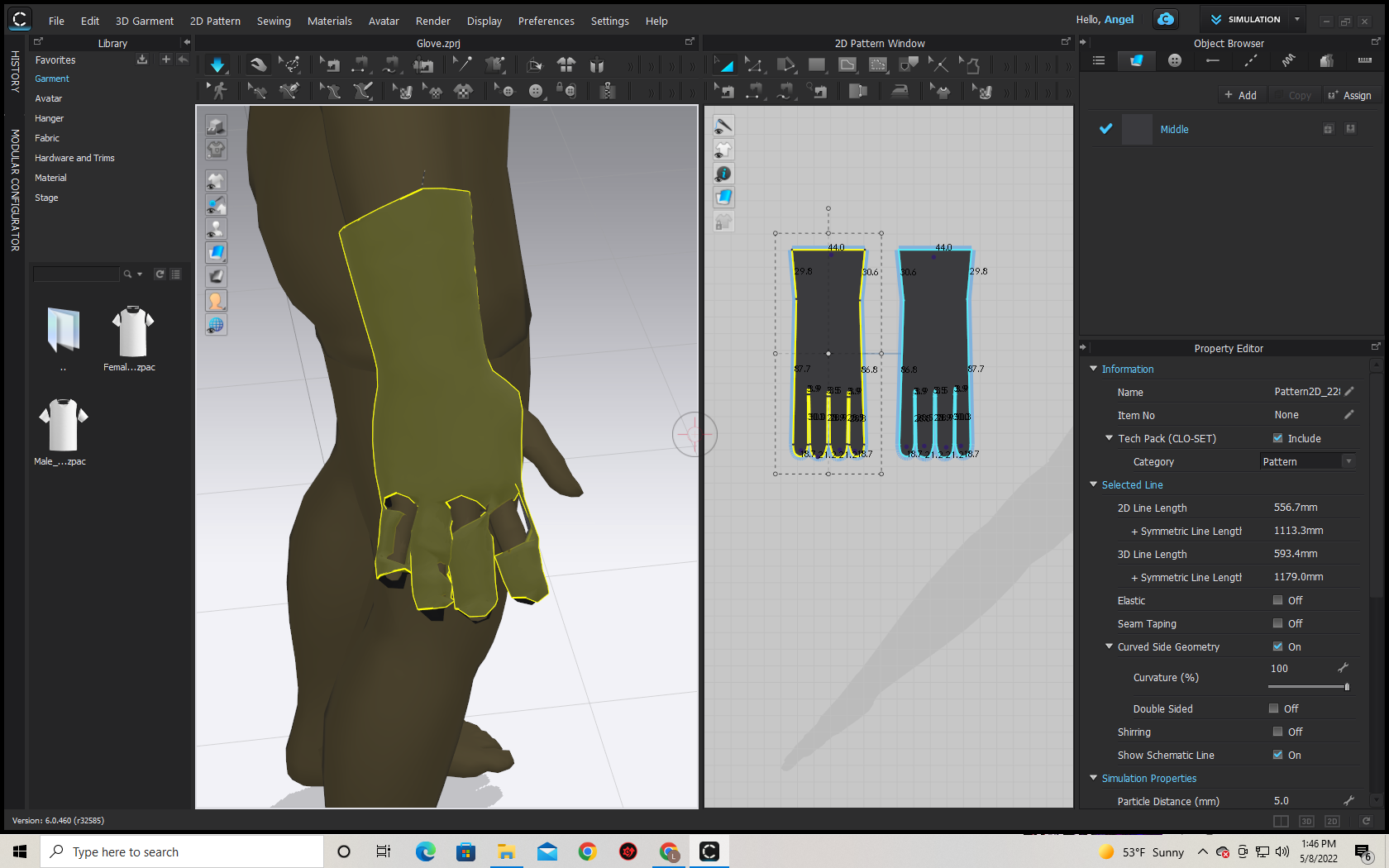
I'm trying to Create Gloves in Clo design/marvelous designer, and for some reason the material keep Bleeding through my avatar.
CD PROJEKT®, Cyberpunk®, Cyberpunk 2077® are registered trademarks of CD
PROJEKT S.A.
© 2021 CD PROJEKT S.A. All rights reserved. All other
copyrights and trademarks are the property of their respective owners.

I'm trying to Create Gloves in Clo design/marvelous designer, and for some reason the material keep Bleeding through my avatar.
For gloves you need to work at greater mesh count (fine resolution) for both your avatar and glove fabric. If you set the particle mesh size for the glove cloth patterns to no greater than 5mm you will get better collision. This will slow down simulation. The poke through is caused by having to large a particle distance on your cloth (= coarse mesh size) such that it cannot fold around the hand finger surfaces - ergo it pokes through. To overcome that a good rule of thumb is to switch your avatar to mesh wire frame mode and look at the skin surfaces of the quad mesh size and then to set your cloth fabric to about that size or best slightly smaller. This should only be dine for gloves however and not across you entire garment, otherwise the simulation will be exponentially slow.
So to recap > for areas on the body where you want the cloth to fold around closely to the skin surface (eg: gloves) set the >patterns< mesh size to slightly smaller than the avatars mesh quad size in that location.
You can set the cloth even smaller and it will improve the result, but conversely it will slow down your projects development. So you need to balance this out. You could make the gloves as a separate project away from your main garment for example to speed this up, and then import them into a final garment assembly. You may also use mesh subdivision brush to locally reduce the cloths mesh distance (particle size), but that comes at a compute time frame (penalty) cost in simulation time-frame-steps. So for this project you need to do some pre-planning and balance out the factors to arrive at a good balance of optimum work speed to assemble and pose the glove. Then perhaps reduce the cloth particle mesh distance when you are happy with the drape and shift to a higher poly count for that all important 'beauty pass' drape simulation.
Hope that helps.
Seconding Angel Angel's comment.
Please note that you are using CLO3D (their colors are blue) and not Marvelous Designer (our colors are orange). The software packages are not the exact same and we as staff can help only to a certain extent with parallel applicable concepts, if you encounter issues with CLO3D please contact the CLO3D forums / Support teams on the CLO3D website.
Best of luck.
Too be far i'm also having the same problems with marvelous designer also.
In the Sim Settings turn off Layer Based Collisions and see if that helps; it's at the very bottom of the simulation settings.
Also, if your avatar is an FBX you can turn on smoothing. select the avatar and turn on Smoothing and increase the levels to 1 then 2 slowly. don't go higher than that. This will add more detail to your avatar for collisions.
DO NOT turn on smoothing if it's an alembic. It will crash.
サインインしてコメントを残してください。